Perforce (P4) server Unicode mode setup to fix Chinese filename/folder garbled text
Problem environment: p4d running on a Linux server, P4ROOT created with default settings, Unicode not enabled. Clients: Windows P4V and Mac P4V. In P4Admin, Server Info showed Unicode support: disabled. When a Windows client added files/folders with Chinese names and submitted them, the Mac client displayed garbled text in the Depot. After Get, filenames were saved with %20 style encoding.
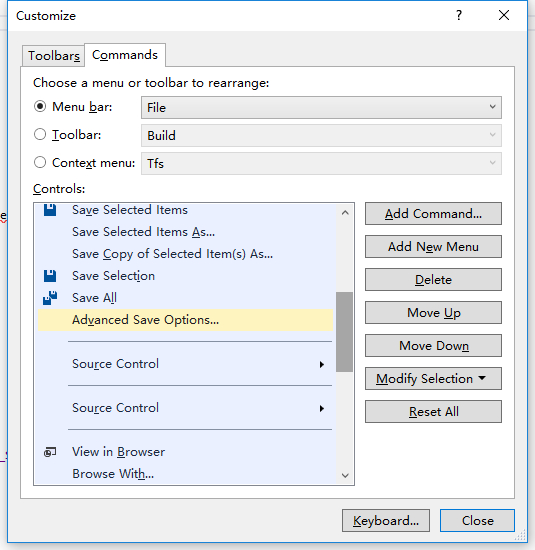
Checking further: with Unicode disabled, in P4V the Connections → Choose Character Encoding… menu was grayed out. In Preferences → Display → Set encoding for all connections to:, Windows default was CP936 GBK, Mac default was UTF‑8. This mismatch caused Chinese names uploaded from Windows to appear garbled on Mac. Forcing P4CHARSET to UTF‑8 or using p4 set produced the error: ‘Unicode clients require a unicode enabled server‘.
Solution: enable Unicode mode on the server.
Switching to Unicode mode: run p4d -xi in the P4ROOT directory. On a fresh root this works fine, but on an existing root with non‑Unicode text you may see errors like:
Table db.user has 14 rows with invalid UTF8.
Table db.domain has 1 rows with invalid UTF8.
…Perforce server error:
Database has 14 tables with non-UTF8 text and can’t be switched to Unicode mode.
This means manual conversion of database text is required.
Steps to fix:
Stop the server:
p4 -p 192.168.0.1:1666 -u username login
p4 -p 192.168.0.1:1666 -u username admin stop
Create checkpoint backup:
p4d -r root -jc
Produces checkpoint.x, checkpoint.x.md5, and updates journal.x.
Convert encoding: open checkpoint.x in a text editor, change encoding to UTF‑8, then save. If mixed GBK and UTF‑8 text exists, manual correction may be needed. Update the .md5 file with the new checksum.
Restore database: copy modified checkpoint files back to server. Delete all db.* files in P4ROOT. Then run:
p4d -r $P4ROOT -jr checkpoint_file journal_file
Use the latest journal.
Enable Unicode mode:
p4d -xi
Now conversion succeeds. Restart p4d.
Result: In P4Admin, Unicode support: enabled is shown. P4V now allows choosing encoding. Select UTF‑8. The previous ‘Choose Character Encoding…‘ disabled issue is resolved. Testing again with Chinese filenames shows correct display across systems.
博主友情提示:
如您在评论中需要提及如QQ号、电子邮件地址或其他隐私敏感信息,欢迎使用>>博主专用加密工具v3<<处理后发布,原文只有博主可以看到。