Compared with simulation environments like Cygwin, Win10’s WSL indeed solves the need for Linux‑related development applications under Windows. Here is a simple record of how to upgrade git in WSL Ubuntu to the latest version, for future reference:
Continue reading…Software and Hardware Usage
Records of techniques for using various software and hardware, for future reference.
Solve the problem of garbled Compile error messages in UE4 under Chinese environment
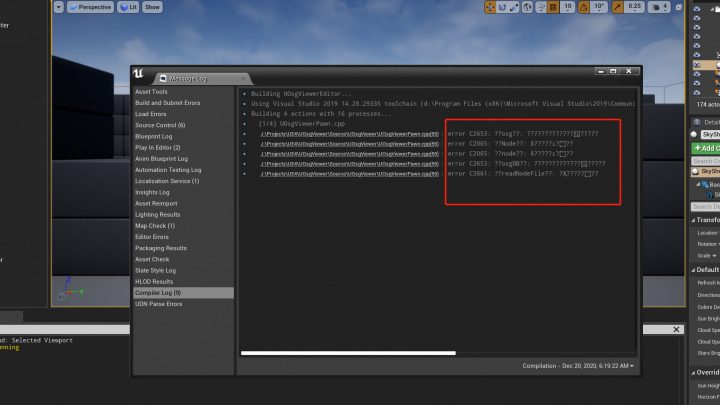
UE4 4.26.0, VS 2019 Community, and Chinese Win10 20H2 together produced the problem discussed today: when Compile errors occur, the log messages in Chinese are garbled:
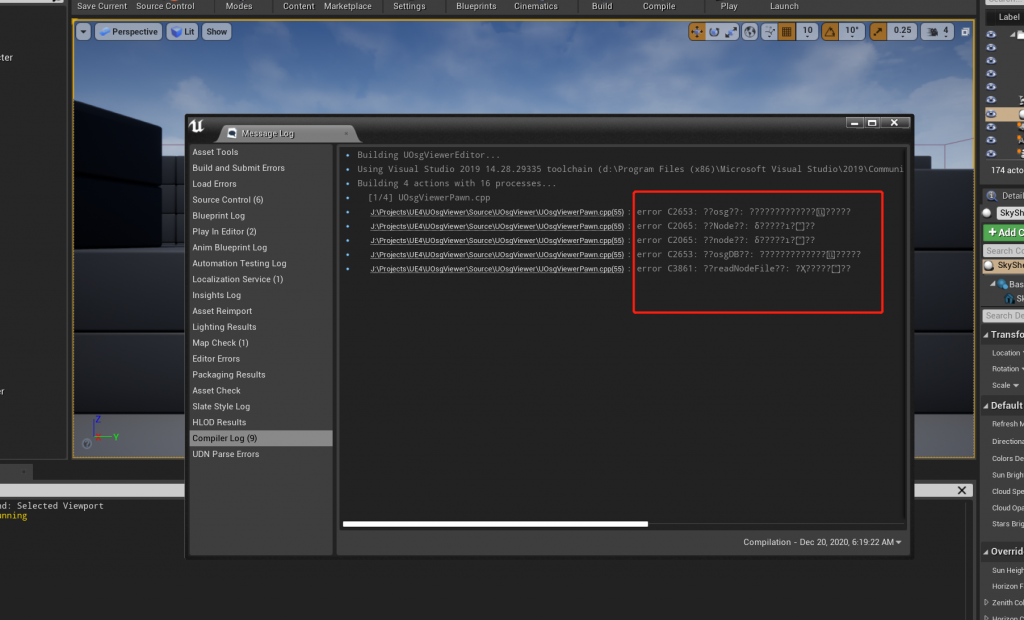
I tried switching VS language to English and UE4 language to Chinese, neither worked. I recalled a previous issue: Android Studio的Build Output中文输出乱码(菱形问号)问题的解决方法, and wondered if UE4 had similar settings. After searching without success, I discovered that in newer Win10 (not sure which version first added it) there is a UTF‑8 option in regional language settings. Although in 20H2 it is still labeled beta, it indeed solves the problem:
Continue reading…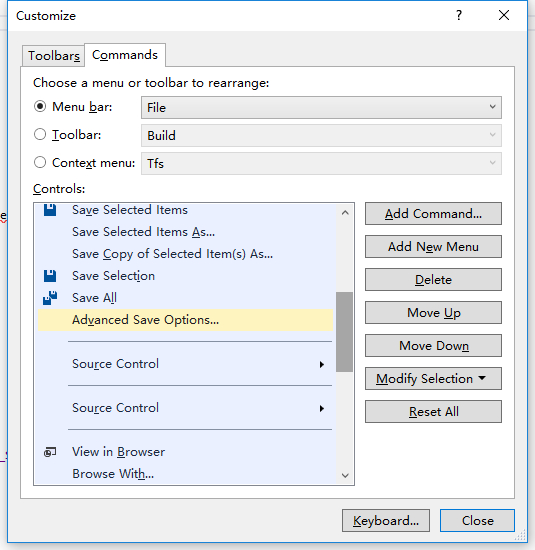
Recovering Advanced Save Options in Visual Studio 2017…
In older versions of VS, the File menu had an item called Advanced Save Options, which allowed choosing the text encoding format of source files. After upgrading to 2017 (fresh installation with all default settings), I found this option was gone (Community edition)!
Actually it is just hidden by default, but you can bring it back through the Customize menu function:
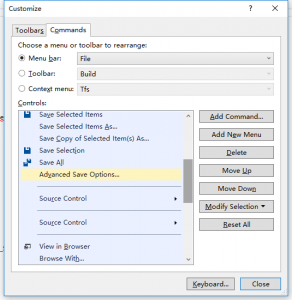
Go to Tools → Customize… → Commands → Menu Bar: File → Add Command → File → Advanced Save Options…, then drag it to the position you prefer!
I feel this option should be quite commonly used, so I do not know why it is hidden by default.
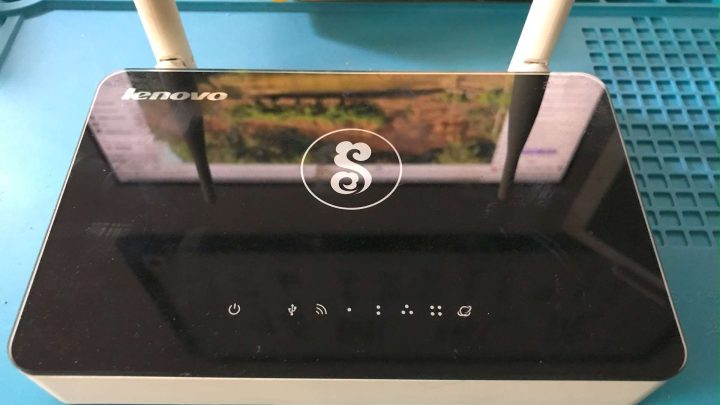
Hard‑mod upgrade of Lenovo Y1S router to 64M flash
Since replacing it with the Redmi AX6000 last October, the Y1S that had served for nearly 10 years finally retired and has since been sitting unused in a box…
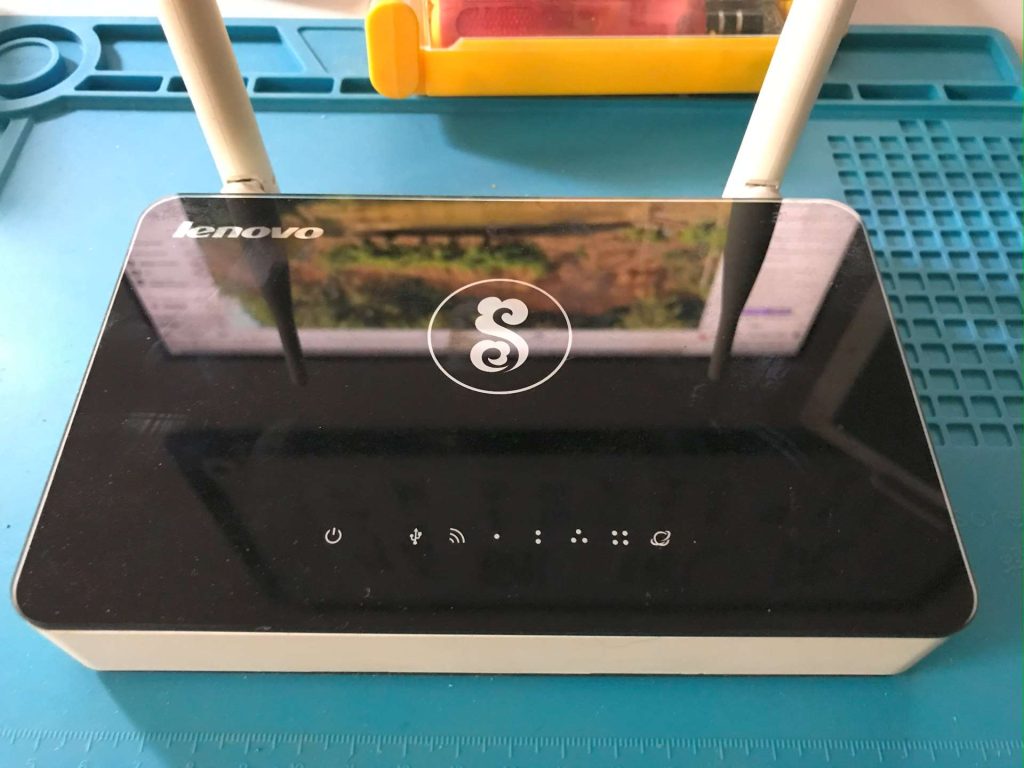
Until recently, while browsing the Enshan forum, I accidentally saw a post by user 1421890054: 【2022-1-22】折腾一下OpenWrt-Lenovo-newifi-y1s-R22.1.1-mt7620a-USB, and realized that the Y1S can actually support larger flash chips (the original Winbond 25Q128 is only 16M, and after installing OpenWrt there is basically no room for software…). So I dug out the retired Y1S, planning to try a hard‑mod flash upgrade for fun.
Continue reading…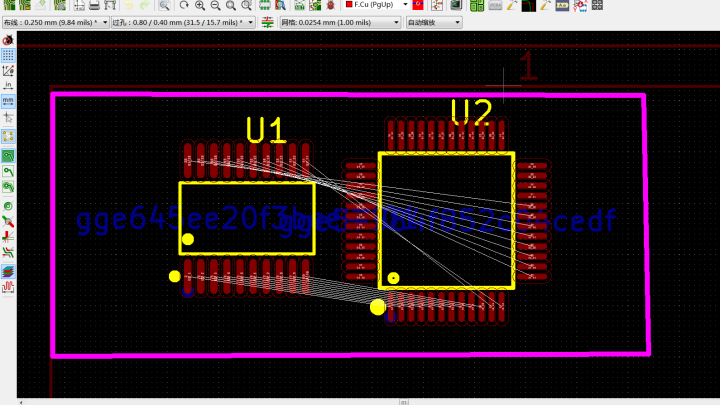
Method to convert PCB footprints from LCSC EasyEDA to KiCad format
Recently I have been learning EDA, using the open source KiCad. Basic operations are simple, but compared to EasyEDA’s web ecosystem, KiCad’s component symbols and footprints are less convenient. Fortunately I found a method to import EasyEDA PCB footprints into KiCad (borrowed from others, haha). Original post: http://www.taodudu.cc/news/show-5505674.html?action=onClick. Recording here:
When using KiCad, sometimes a footprint is missing and needs to be drawn manually. But drawing is troublesome. Instead, you can download directly from EasyEDA.
First log in to the EasyEDA web version: https://pro.lceda.cn/ and enter the standard version.

Cherry MX2.0S RGB keyboard LED failure episode three
Following the previous two repair records of Cherry MX2.0S RGB LED failures (see earlier notes: Repair log of Cherry MX2.0S RGB keyboard lighting failure after more than 3 years , Cherry MX2.0S RGB keyboard LED failure repair log again), after about two months another group of keys (Ctrl, Shift, =, F11) developed the same fault:

Because I know this keyboard has the bad LED issue, I often subconsciously press keys repeatedly to trigger the lighting effect and check if any LEDs have died.
This time I caught it in the act, witnessing the entire process of this group of LEDs going from ‘normal to failing’:
Continue reading…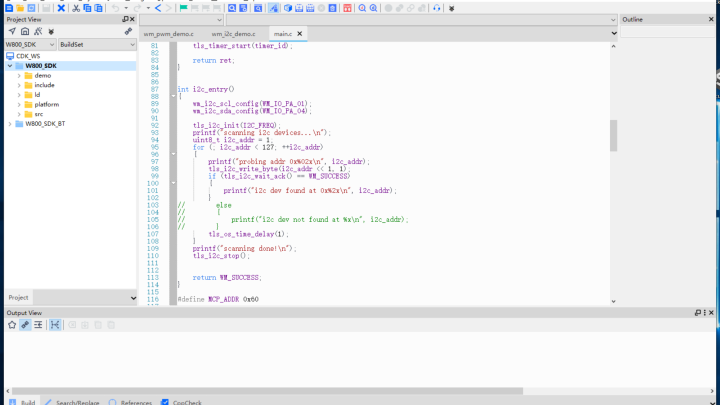
Keil CDK and other IDEs on high DPI monitors in Windows 10 blurry issue solution
The problem looks like this:
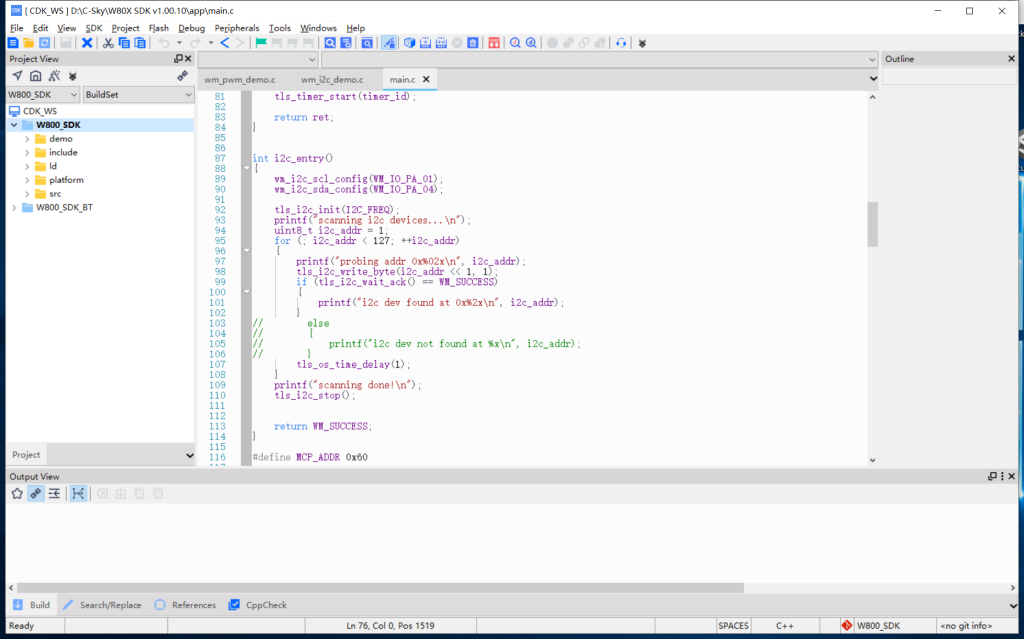
Recently I have been trying many MCUs, and using various IDEs and programming/debugging tools. Being used to VS and JetBrains, I felt like going back ten years 😂. The first problem was that on a high DPI monitor in Windows 10, the display was blurry. After some research I found a temporary solution:
Continue reading…Qt open‑source development environment installer, skipping account login
This is a note on how to bypass the account login requirement in the Qt open‑source installer, based on:
https://www.openguru.com/2021/03/install-qt-creator-without-qt-account.html
First, download the Qt offline installer here: https://www.qt.io/offline-installers. During installation you will still be asked to log in. On Linux systems you can set an invalid proxy as described in the reference link. On Windows you can disable the network connection to skip the login.
This way the installation proceeds without requiring a Qt account.
Problems encountered when cloning submodules in a GitHub project
GitHub is truly a treasure trove of open source, not only for learning code but also for learning how to use git!
Recently I studied the Off‑the‑Record‑iOS project (https://github.com/chrisballinger/Off-the-Record-iOS) and practiced using git submodules.
This project has a Submodules folder containing other open source projects it depends on. At first I did not notice, and just downloaded the ZIP. In XCode many file names showed up in red, revealing missing dependencies. There were quite a few, so I abandoned manual downloading.
Searching, I found issue #87 where someone asked the same question: https://github.com/chrisballinger/Off-the-Record-iOS/issues/87. Following the answer, I cloned the project with git and ran git submodule init && git submodule update (for git 1.6 and later you can use git clone –recursive). Updating worked for the first few submodules, but then a new error appeared:
Submodule path ‘Submodules/DAKeyboardControl’: checked out ‘5352d1ff2d1131d974d94406ed8fcf8eb068aa72’
Cloning into ‘Submodules/LibOrange’…
Permission denied (publickey).
fatal: Could not read from remote repository.
Please make sure you have the correct access rights
and the repository exists.
Clone of ‘git@github.com:ChatSecure/LibOrange.git’ into submodule path ‘Submodules/LibOrange’ failed
Windows symbolic link (shortcut) follow behavior in network shares
This issue appeared during the following operation. First, a PowerShell script was used to create a symbolic link:
New-Item -ItemType SymbolicLink -Path d:\share_folder\ -Name latest -Target d:\share_folder\v1000 -Force
This command creates a shortcut named ‘latest’ inside d:\share_folder, pointing to the sibling folder v1000. Then share_folder was shared over the network. When accessing \\xxx.xxx.xxx.xxx\share_folder\latest from another machine, the error appeared: ‘Cannot follow symbolic link because its type is disabled’. Searching online revealed the reason, for example: https://www.zywvvd.com/notes/system/windows/symlink-disabled/symlink-disabled/
By default, Windows only allows symbolic link following locally. Remote‑to‑local (a shortcut inside a share pointing to a local path) and remote‑to‑remote (a shortcut inside a share pointing to another share path) are disabled. Following the solution, running: fsutil behavior set SymlinkEvaluation R2L:1 enables remote‑to‑local following. But then accessing the link produced ‘target folder does not exist’.
Continue reading…