July 2026

Problems encountered when cloning submodules in a GitHub project

GitHub is truly a treasure trove of open source, not only for learning code but also for learning how to use git!

Recently I studied the Off‑the‑Record‑iOS project (https://github.com/chrisballinger/Off-the-Record-iOS) and practiced using git submodules.

This project has a Submodules folder containing other open source projects it depends on. At first I did not notice, and just downloaded the ZIP. In XCode many file names showed up in red, revealing missing dependencies. There were quite a few, so I abandoned manual downloading.

Searching, I found issue #87 where someone asked the same question: https://github.com/chrisballinger/Off-the-Record-iOS/issues/87. Following the answer, I cloned the project with git and ran git submodule init && git submodule update (for git 1.6 and later you can use git clone –recursive). Updating worked for the first few submodules, but then a new error appeared:

Submodule path ‘Submodules/DAKeyboardControl’: checked out ‘5352d1ff2d1131d974d94406ed8fcf8eb068aa72’
Cloning into ‘Submodules/LibOrange’…
Permission denied (publickey).
fatal: Could not read from remote repository.

Please make sure you have the correct access rights
and the repository exists.
Clone of ‘git@github.com:ChatSecure/LibOrange.git’ into submodule path ‘Submodules/LibOrange’ failed

Continue reading…

Windows symbolic link (shortcut) follow behavior in network shares

This issue appeared during the following operation. First, a PowerShell script was used to create a symbolic link:

New-Item -ItemType SymbolicLink -Path d:\share_folder\ -Name latest -Target d:\share_folder\v1000 -Force

This command creates a shortcut named ‘latest’ inside d:\share_folder, pointing to the sibling folder v1000. Then share_folder was shared over the network. When accessing \\xxx.xxx.xxx.xxx\share_folder\latest from another machine, the error appeared: ‘Cannot follow symbolic link because its type is disabled’. Searching online revealed the reason, for example: https://www.zywvvd.com/notes/system/windows/symlink-disabled/symlink-disabled/

By default, Windows only allows symbolic link following locally. Remote‑to‑local (a shortcut inside a share pointing to a local path) and remote‑to‑remote (a shortcut inside a share pointing to another share path) are disabled. Following the solution, running: fsutil behavior set SymlinkEvaluation R2L:1 enables remote‑to‑local following. But then accessing the link produced ‘target folder does not exist’.

Continue reading…

One possible cause of the ‘Cannot mix incompatible Qt library with this library’ error

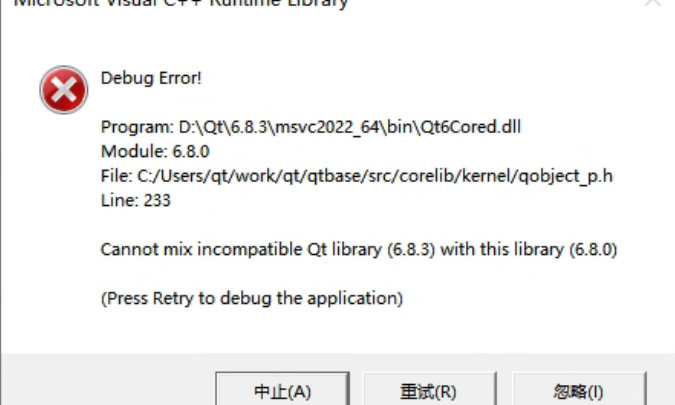
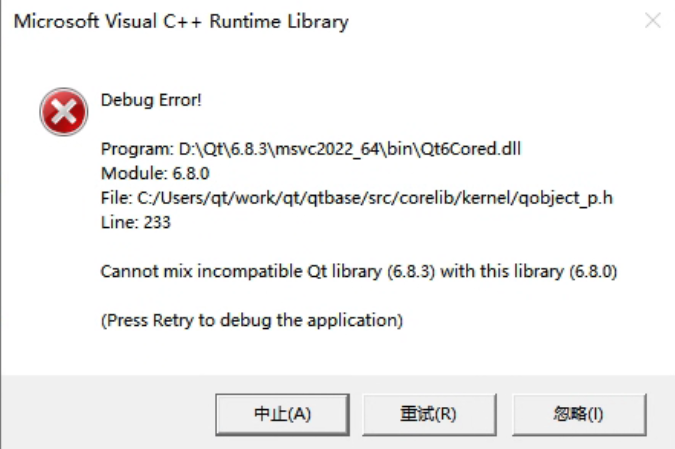
The complete error message looks like this:

Output in the debug console:

QtTest.exe (15068): Loaded 'D:\Qt\6.8.3\msvc2022_64\plugins\styles\qmodernwindowsstyled.dll'. Symbols loaded.
Cannot mix incompatible Qt library (6.8.3) with this library (6.8.0)
Debug Error!

Program: D:\Qt\6.8.3\msvc2022_64\bin\Qt6Cored.dll
Module: 6.8.0
File: C:/Users/qt/work/qt/qtbase/src/corelib/kernel/qobject_p.h
Line: 233

Cannot mix incompatible Qt library (6.8.3) with this library (6.8.0)

(Press Retry to debug the application)

This error occurred in a simple test program using QOpenGLWidget. The message clearly indicates that different versions of Qt libraries were mixed. Searching online shows many similar cases, usually caused by overlapping Qt DLL versions in the system PATH, because Qt loads many dynamic libraries as plugins. But after checking repeatedly, I confirmed that my environment did not have this issue. I only had one Qt installation, the prebuilt 6.8.3 version installed via Qt Maintenance Tool under D:\Qt\6.8.3. If I ignored the error, the program still ran correctly, but the popup was annoying, so I needed to investigate.

Continue reading…

A deeper look into the issue of PS2 failing to recognize certain PS1 memory cards

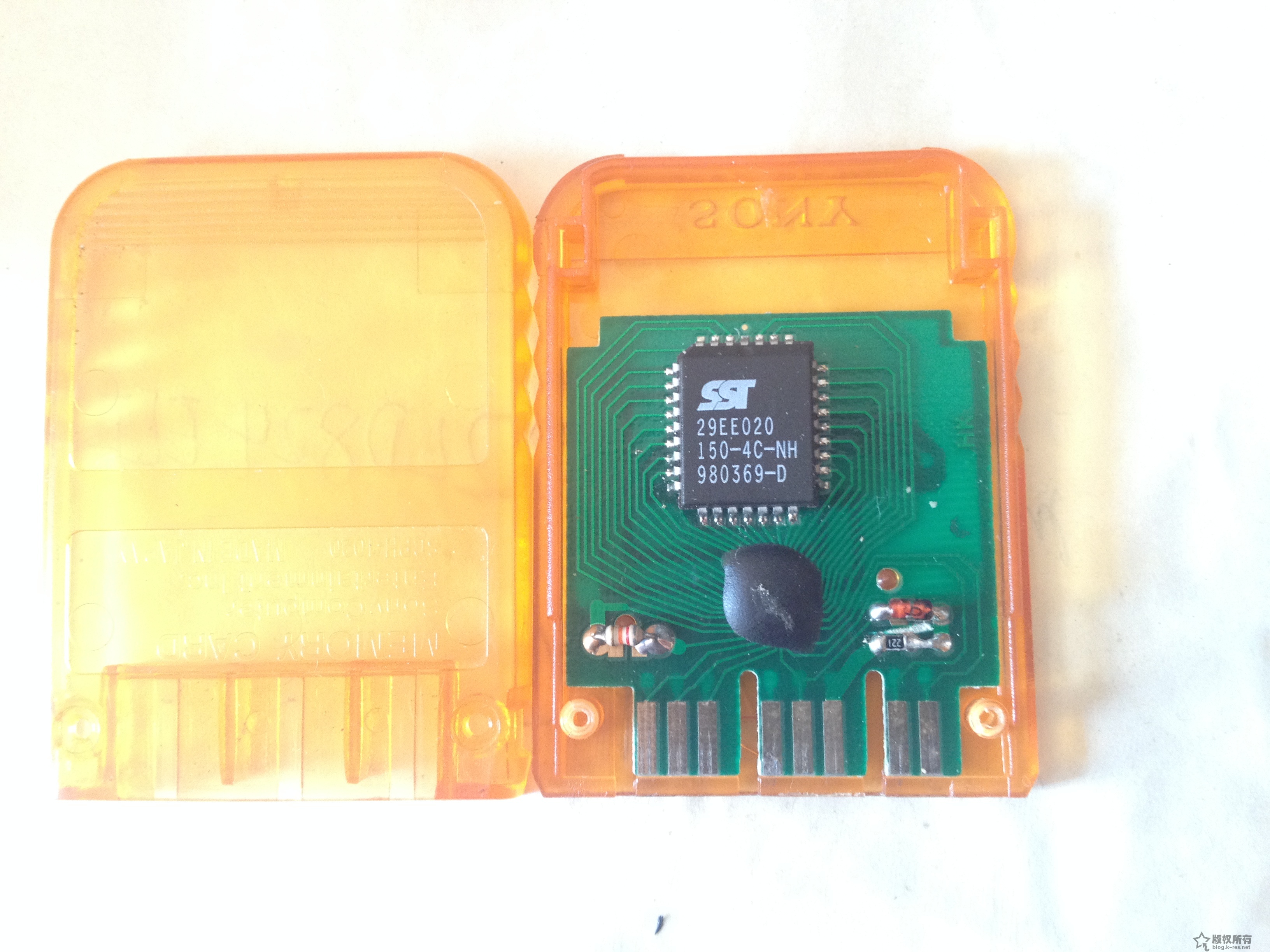
After installing the 816HD mod chip on my long‑unused PS2, the console essentially reached the 230 BIOS 9W perfect state. PS1 games were also fully supported (so far I have not seen any functional impact from the two‑reset behavior). Naturally, when replaying classic PS1 titles, saving is essential, so I dug out my PS1 memory card that had been stored for 15 years (I used it back in arcade shops):
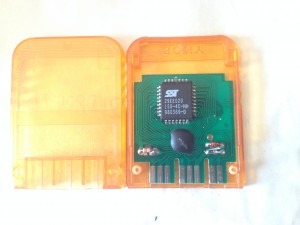
IMG_0744
When I inserted it into the PS2, the browser could not recognize it. Searching online, I found many forum discussions about this issue. In short, PS2 has poor compatibility with PS1 memory cards, especially assembled or off‑brand cards (mine is clearly a cheap clone using the so‑called ‘cow dung’ chip). Some users even reported the opposite: clone cards work but original Sony cards do not. Others mentioned that Sony’s PocketStation, which has an LCD screen, works 100% reliably. I also saw sellers on Taobao offering PS1 original cards claiming full PS2 compatibility.

Just when I was about to buy an original PS1 card, I discovered something surprising: although my old clone card could not be recognized in the PS2 memory card management screen, once I booted into a PS1 game, the card was recognized. It showed messages like ‘memory card full’ or ‘no usable save data’. This suggested the card was not broken, but simply suffering from a compatibility issue.

Later, while playing a Chinese‑translated Japanese version of Resident Evil 3, I found an old save file on the card. Loading worked normally, and saving (overwriting) also worked. So the card functions perfectly during PS1 mode on the PS2, even though the PS2’s memory card manager (and tools like uLaunchElf) cannot detect it.

Continue reading…
Record of a Linux system C++ dynamic library global symbol name conflict

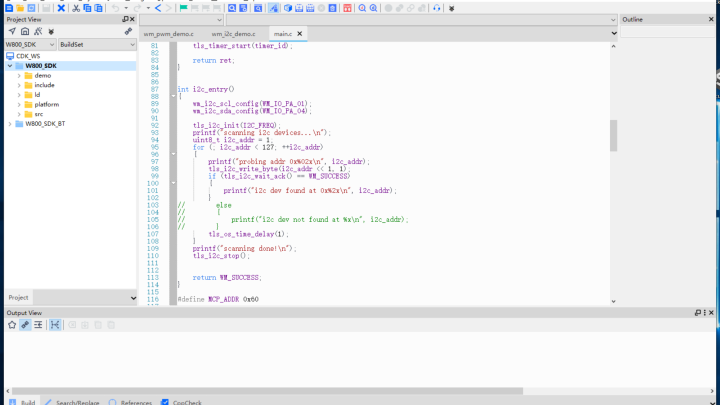
First, a simple description of the situation: there are three code files, one main executable and two dynamic libraries. The structure is similar to the weak symbol example:

#include <string>

std::string g_name;

void init_name_lib1()
{
    g_name = "lib1";
}

const char* get_name_lib1()
{
    return g_name.c_str();
}
#include <string>

std::string g_name;

void init_name_lib2()
{
    g_name = "lib2";
}

const char* get_name_lib2()
{
    return g_name.c_str();
}
#include <iostream>

void init_name_lib1();
void init_name_lib2();
const char* get_name_lib1();
const char* get_name_lib2();

int main()
{
    init_name_lib1();
    init_name_lib2();

    std::cout << "name from lib1: " << get_name_lib1() << std::endl;
    std::cout << "name from lib2: " << get_name_lib2() << std::endl;

    return EXIT_SUCCESS;
}
Continue reading…

About clang’s -Wweak-vtables warning

The full warning message looks like this:

warning: ‘XXX’ has no out-of-line virtual method definitions; its vtable
will be emitted in every translation unit [-Wweak-vtables]

This warning usually comes from code like:

// XXX.h中
class BaseData
{
public:
    virtual ~BaseData() = default;
    int _base_data = 0;
};

class DerivedDataA final : public BaseData
{
public:
    int _derived_data_a = 0;
};

class DerivedDataB final : public BaseData
{
public:
    int _derived_data_b = 0;
};
Continue reading…

OpenWRT accidental deletion of uhttpd service configuration causing LuCI management page inaccessible

I compiled my own OpenWRT firmware with uHTTPd providing the LuCI UI. While experimenting with server mapping I clicked delete in the top right and applied it:

After that the LuCI interface could no longer be accessed. I realized the configuration I deleted was the web server supporting LuCI. After several reboots the router functions were still normal, but the web management was gone. Dropbear SSH still worked. I was ready to reflash the firmware, but then I found this forum post:

https://forum.openwrt.org/t/cannot-access-luci-after-messing-with-settings/147903

By running the following command:

cp /rom/etc/config/uhttpd /etc/config/uhttpd

The default uhttpd configuration file is restored. Then restart the uhttpd service with service uhttpd restart, or simply reboot the router. The LuCI management page comes back without reflashing, quickly recovering access.